Provisioning AWS Infrastructure Using Terraform (IaC)

Source: Dev.to
6 million dollar question: “If everything went down today, could you rebuild it from code?” After this project, the answer is YES. Be able to say (confidently): “I provision AWS infrastructure using Terraform.”
📦 WHAT WE WILL BUILD (CLEAR SCOPE) Terraform will create: ✅ EC2 instance (Ubuntu) ✅ Key Pair (or reference existing) ✅ Output values (public IP) This will replace manual EC2 creation. 🗂 PROJECT STRUCTURE (PROFESSIONAL) NB: Note that we are using Bash terminal throughout the project except stated otherwise. 🧱 CLASS 1 — TERRAFORM SETUP & BASICS
Step 1: Install Terraform (Windows) Download:
👉 https://developer.hashicorp.com/terraform/downloads How do you add to path? 🧱 STEP 4 — ADD TERRAFORM TO PATH (CRITICAL) This is the step most people miss. 3️⃣ Add C:\terraform to PATH (CRITICAL) Click on Browse.. and select the terraform folder we have save in C:. Click OK on all windows. ⚠️ You must close and reopen Git Bash after this. 🧪 STEP 5 — VERIFY INSTALLATION Open Git Bash again, then run:
Verify: You must see a version number. ✅ STEP 2: Create the Terraform project directory mkdir project-3-terraform-aws cd project-3-terraform-aws ✅ Now you’re in the right place. ☁️ AWS SETUP — KEY PAIR (SAFE & CORRECT)
🎯 What we are doing By the end of this, you will have: STEP 1: Log in to AWS Console Go to:
👉 https://console.aws.amazon.com/ Sign in with your *AWS account.
*
STEP 2: Select the correct region (IMPORTANT) Top-right corner of AWS Console: Select US East (N. Virginia) → us-east-1 STEP 3: Go to EC2 Dashboard In the AWS search bar, type: STEP 4: Create a Key Pair Click Create key pair. (simple, professional, reusable) Private key file format: .pem Click Create key pair. STEP 5: SAVE THE KEY FILE (VERY IMPORTANT) Your browser will download: ⚠️ AWS will never show this file again. ✅ STEP 3: Initialize the project files
Create the Terraform files we’ll use: Now that the folder exists and files are created, open it in VS Code: Step 1: Paste variables.tf Open variables.tf and paste: variable "region" { description = "AWS region" type = string default = "us-east-1"
} variable "instance_type" { description = "EC2 instance type (keep low-cost)" type = string default = "t2.micro"
} variable "key_name" { description = "Existing AWS key pair name (NOT the .pem filename)" type = string
} terraform { required_providers { aws = { source = "hashicorp/aws" version = "~> 5.0" } }
} provider "aws" { region = var.region
} resource "aws_security_group" "web_sg" { name = "terraform-web-sg" description = "Allow SSH and HTTP" ingress { description = "SSH" from_port = 22 to_port = 22 protocol = "tcp" cidr_blocks = ["0.0.0.0/0"] } ingress { description = "HTTP" from_port = 80 to_port = 80 protocol = "tcp" cidr_blocks = ["0.0.0.0/0"] } egress { from_port = 0 to_port = 0 protocol = "-1" cidr_blocks = ["0.0.0.0/0"] }
} data "aws_ami" "ubuntu" { most_recent = true filter { name = "name" values = ["ubuntu/images/hvm-ssd/ubuntu-jammy-22.04-amd64-server-*"] } filter { name = "virtualization-type" values = ["hvm"] } owners = ["099720109477"] # Canonical (Ubuntu)
} resource "aws_instance" "web" { ami = data.aws_ami.ubuntu.id instance_type = var.instance_type key_name = var.key_name vpc_security_group_ids = [aws_security_group.web_sg.id] tags = { Name = "terraform-web-instance" }
} output "public_ip" { description = "Public IP of the EC2 instance" value = aws_instance.web.public_ip
} key_name = "YOUR_KEYPAIR_NAME" terraform init
terraform fmt
terraform validate
terraform plan key_name = "terraform-key" C:\Program Files\Amazon\AWSCLIV2\ C:\Program Files\Amazon\AWSCLIV2\bin\ aws sts get-caller-identity C:\Program Files\Amazon\AWSCLIV2\aws.exe
aws-cli/2.xx.x Python/3.xx Windows/10 exe/AMD64 aws sts get-caller-identity Copy code
terraform init
terraform plan terraform refresh
terraform output chmod 400 ~/OneDrive/Desktop/terraform-key.pem
ssh -i ~/OneDrive/Desktop/terraform-key.pem [email protected] chmod 400 ~/Downloads/terraform-key.pem
ssh -i ~/Downloads/terraform-key.pem [email protected] sudo apt-get update -y
sudo apt-get install -y docker.io
sudo systemctl enable --now docker
sudo usermod -aG docker ubuntu
newgrp docker
docker run -d --name hello -p 80:80 nginx:alpine cd ~/OneDrive/Desktop/project-3-terraform-aws Templates let you quickly answer FAQs or store snippets for re-use. Are you sure you want to hide this comment? It will become hidden in your post, but will still be visible via the comment's permalink. Hide child comments as well For further actions, you may consider blocking this person and/or reporting abuse CODE_BLOCK:
project-3-terraform-aws/
├── main.tf
├── variables.tf
├── outputs.tf
├── terraform.tfvars
└── README.md Enter fullscreen mode Exit fullscreen mode CODE_BLOCK:
project-3-terraform-aws/
├── main.tf
├── variables.tf
├── outputs.tf
├── terraform.tfvars
└── README.md CODE_BLOCK:
project-3-terraform-aws/
├── main.tf
├── variables.tf
├── outputs.tf
├── terraform.tfvars
└── README.md CODE_BLOCK:
terraform -version Enter fullscreen mode Exit fullscreen mode CODE_BLOCK:
terraform -version CODE_BLOCK:
terraform -version CODE_BLOCK:
.../Desktop/project-3-terraform-aws Enter fullscreen mode Exit fullscreen mode CODE_BLOCK:
.../Desktop/project-3-terraform-aws CODE_BLOCK:
.../Desktop/project-3-terraform-aws CODE_BLOCK:
Network & Security → Key Pairs Enter fullscreen mode Exit fullscreen mode CODE_BLOCK:
Network & Security → Key Pairs CODE_BLOCK:
Network & Security → Key Pairs CODE_BLOCK:
`touch main.tf variables.tf outputs.tf terraform.tfvars` Enter fullscreen mode Exit fullscreen mode CODE_BLOCK:
`touch main.tf variables.tf outputs.tf terraform.tfvars` CODE_BLOCK:
`touch main.tf variables.tf outputs.tf terraform.tfvars` CODE_BLOCK:
main.tf variables.tf outputs.tf terraform.tfvars Enter fullscreen mode Exit fullscreen mode CODE_BLOCK:
main.tf variables.tf outputs.tf terraform.tfvars CODE_BLOCK:
main.tf variables.tf outputs.tf terraform.tfvars CODE_BLOCK:
code . Enter fullscreen mode Exit fullscreen mode CODE_BLOCK:
Enter fullscreen mode Exit fullscreen mode CODE_BLOCK:
Step 2: Paste `main.tf` Open `main.tf `and paste: Enter fullscreen mode Exit fullscreen mode CODE_BLOCK:
Step 2: Paste `main.tf` Open `main.tf `and paste: CODE_BLOCK:
Step 2: Paste `main.tf` Open `main.tf `and paste: CODE_BLOCK:
Step 3: Paste `outputs.tf` Open `outputs.tf` and paste: Enter fullscreen mode Exit fullscreen mode CODE_BLOCK:
Step 3: Paste `outputs.tf` Open `outputs.tf` and paste: CODE_BLOCK:
Step 3: Paste `outputs.tf` Open `outputs.tf` and paste: CODE_BLOCK:
Step 4: Set `terraform.tfvars` Open `terraform.tfvars` and paste (edit the key name): Enter fullscreen mode Exit fullscreen mode CODE_BLOCK:
Step 4: Set `terraform.tfvars` Open `terraform.tfvars` and paste (edit the key name): CODE_BLOCK:
Step 4: Set `terraform.tfvars` Open `terraform.tfvars` and paste (edit the key name): CODE_BLOCK:
⚠️ This must be your AWS Key Pair name (example: nodejs-key) — not nodejs-key.pem. Step 5: Run Terraform commands (from Git Bash in project-3 folder) Enter fullscreen mode Exit fullscreen mode CODE_BLOCK:
⚠️ This must be your AWS Key Pair name (example: nodejs-key) — not nodejs-key.pem. Step 5: Run Terraform commands (from Git Bash in project-3 folder) CODE_BLOCK:
⚠️ This must be your AWS Key Pair name (example: nodejs-key) — not nodejs-key.pem. Step 5: Run Terraform commands (from Git Bash in project-3 folder) CODE_BLOCK:
STEP 6: Confirm the **Key Pair** exists Back in `AWS Console → Key Pairs` You should see: Enter fullscreen mode Exit fullscreen mode CODE_BLOCK:
STEP 6: Confirm the **Key Pair** exists Back in `AWS Console → Key Pairs` You should see: CODE_BLOCK:
STEP 6: Confirm the **Key Pair** exists Back in `AWS Console → Key Pairs` You should see: CODE_BLOCK:
👉 Terraform uses the **name**
👉 SSH uses the **.pem file** STEP 7: Prepare for **Terraform** Now go back to your local machine. Open: `project-3-terraform-aws/terraform.tfvars` Set: Enter fullscreen mode Exit fullscreen mode CODE_BLOCK:
👉 Terraform uses the **name**
👉 SSH uses the **.pem file** STEP 7: Prepare for **Terraform** Now go back to your local machine. Open: `project-3-terraform-aws/terraform.tfvars` Set: CODE_BLOCK:
👉 Terraform uses the **name**
👉 SSH uses the **.pem file** STEP 7: Prepare for **Terraform** Now go back to your local machine. Open: `project-3-terraform-aws/terraform.tfvars` Set: CODE_BLOCK:
✅ This is correct. 🚀 PROJECT 3 — CLASS 2 (CONTINUED)
Terraform Plan → Apply → Verify → Destroy (Cost-Safe) You already have: ✅ Terraform installed ✅ AWS CLI configured ✅ Key pair created: terraform-key ✅ Terraform files created Now we proceed. ✅ **Step 1: Set the key pair in Terraform** Open `terraform.tfvars` and confirm it contains exactly: `key_name = "terraform-key"` Save the file. ✅ FIX AWS CLI v2 (Windows 11) Step 1: Check if AWS CLI files actually exist Open File Explorer and go to: Enter fullscreen mode Exit fullscreen mode CODE_BLOCK:
✅ This is correct. 🚀 PROJECT 3 — CLASS 2 (CONTINUED)
Terraform Plan → Apply → Verify → Destroy (Cost-Safe) You already have: ✅ Terraform installed ✅ AWS CLI configured ✅ Key pair created: terraform-key ✅ Terraform files created Now we proceed. ✅ **Step 1: Set the key pair in Terraform** Open `terraform.tfvars` and confirm it contains exactly: `key_name = "terraform-key"` Save the file. ✅ FIX AWS CLI v2 (Windows 11) Step 1: Check if AWS CLI files actually exist Open File Explorer and go to: CODE_BLOCK:
✅ This is correct. 🚀 PROJECT 3 — CLASS 2 (CONTINUED)
Terraform Plan → Apply → Verify → Destroy (Cost-Safe) You already have: ✅ Terraform installed ✅ AWS CLI configured ✅ Key pair created: terraform-key ✅ Terraform files created Now we proceed. ✅ **Step 1: Set the key pair in Terraform** Open `terraform.tfvars` and confirm it contains exactly: `key_name = "terraform-key"` Save the file. ✅ FIX AWS CLI v2 (Windows 11) Step 1: Check if AWS CLI files actually exist Open File Explorer and go to: CODE_BLOCK:
Look for: Enter fullscreen mode Exit fullscreen mode CODE_BLOCK:
Also check this folder: Enter fullscreen mode Exit fullscreen mode CODE_BLOCK:
Also check this folder: CODE_BLOCK:
Also check this folder: CODE_BLOCK:
Look for: Enter fullscreen mode Exit fullscreen mode CODE_BLOCK:
How to add PATH: Press **Win key** → type **Environment Variables** Open **Edit the system environment variables** Click **Environment Variables…** Under User variables (top), select **Path** → **Edit** New → paste the path above **OK → OK → OK** ✅ Now close ALL terminals (PowerShell + Git Bash) and reopen PowerShell. Test: **where aws
aws --version** **After AWS works: configure creds for Terraform** Once `aws --version` works, do: Enter fullscreen mode Exit fullscreen mode CODE_BLOCK:
How to add PATH: Press **Win key** → type **Environment Variables** Open **Edit the system environment variables** Click **Environment Variables…** Under User variables (top), select **Path** → **Edit** New → paste the path above **OK → OK → OK** ✅ Now close ALL terminals (PowerShell + Git Bash) and reopen PowerShell. Test: **where aws
aws --version** **After AWS works: configure creds for Terraform** Once `aws --version` works, do: CODE_BLOCK:
How to add PATH: Press **Win key** → type **Environment Variables** Open **Edit the system environment variables** Click **Environment Variables…** Under User variables (top), select **Path** → **Edit** New → paste the path above **OK → OK → OK** ✅ Now close ALL terminals (PowerShell + Git Bash) and reopen PowerShell. Test: **where aws
aws --version** **After AWS works: configure creds for Terraform** Once `aws --version` works, do: CODE_BLOCK:
Set: region: `us-east-1
`
output: `json` Then confirm: Enter fullscreen mode Exit fullscreen mode CODE_BLOCK:
Set: region: `us-east-1
`
output: `json` Then confirm: CODE_BLOCK:
Set: region: `us-east-1
`
output: `json` Then confirm: CODE_BLOCK:
Then go back to your **Terraform folder** and **run**: Enter fullscreen mode Exit fullscreen mode CODE_BLOCK:
Then go back to your **Terraform folder** and **run**: CODE_BLOCK:
Then go back to your **Terraform folder** and **run**: CODE_BLOCK:
Expected output (example): Enter fullscreen mode Exit fullscreen mode CODE_BLOCK:
Expected output (example): CODE_BLOCK:
Expected output (example): CODE_BLOCK:
✅ **Then continue Project 3 (Terraform AWS)**
Configure AWS credentials: Enter fullscreen mode Exit fullscreen mode CODE_BLOCK:
✅ **Then continue Project 3 (Terraform AWS)**
Configure AWS credentials: CODE_BLOCK:
✅ **Then continue Project 3 (Terraform AWS)**
Configure AWS credentials: CODE_BLOCK:
Enter: **Access Key ID** → from AWS IAM
**Secret Access Key** → from AWS IAM
**Region** → `us-east-1`
**Output** → `json` Verify: Enter fullscreen mode Exit fullscreen mode CODE_BLOCK:
Enter: **Access Key ID** → from AWS IAM
**Secret Access Key** → from AWS IAM
**Region** → `us-east-1`
**Output** → `json` Verify: CODE_BLOCK:
Enter: **Access Key ID** → from AWS IAM
**Secret Access Key** → from AWS IAM
**Region** → `us-east-1`
**Output** → `json` Verify: CODE_BLOCK:
Then: Enter fullscreen mode Exit fullscreen mode CODE_BLOCK:
You should get a successful result. 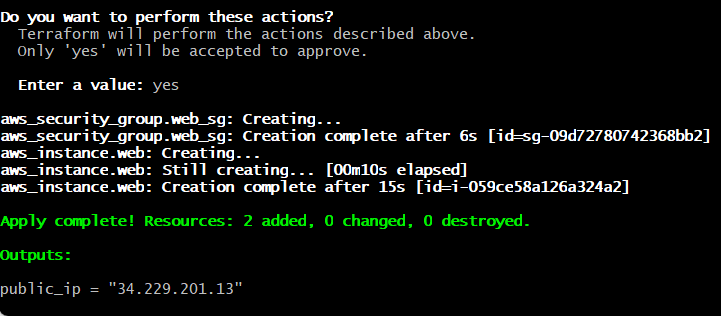 **Next step (Project 3)** From the same folder `(~/OneDrive/Desktop/project-3-terraform-aws)` run: Enter fullscreen mode Exit fullscreen mode CODE_BLOCK:
You should get a successful result.  **Next step (Project 3)** From the same folder `(~/OneDrive/Desktop/project-3-terraform-aws)` run: CODE_BLOCK:
You should get a successful result.  **Next step (Project 3)** From the same folder `(~/OneDrive/Desktop/project-3-terraform-aws)` run: CODE_BLOCK:
Type **yes **when it asks. After it finishes, **run**: Enter fullscreen mode Exit fullscreen mode CODE_BLOCK:
Type **yes **when it asks. After it finishes, **run**: CODE_BLOCK:
Type **yes **when it asks. After it finishes, **run**: CODE_BLOCK:
You should see the Enter fullscreen mode Exit fullscreen mode CODE_BLOCK:
You should see the CODE_BLOCK:
You should see the CODE_BLOCK:
**1) Get the EC2 Public IP** 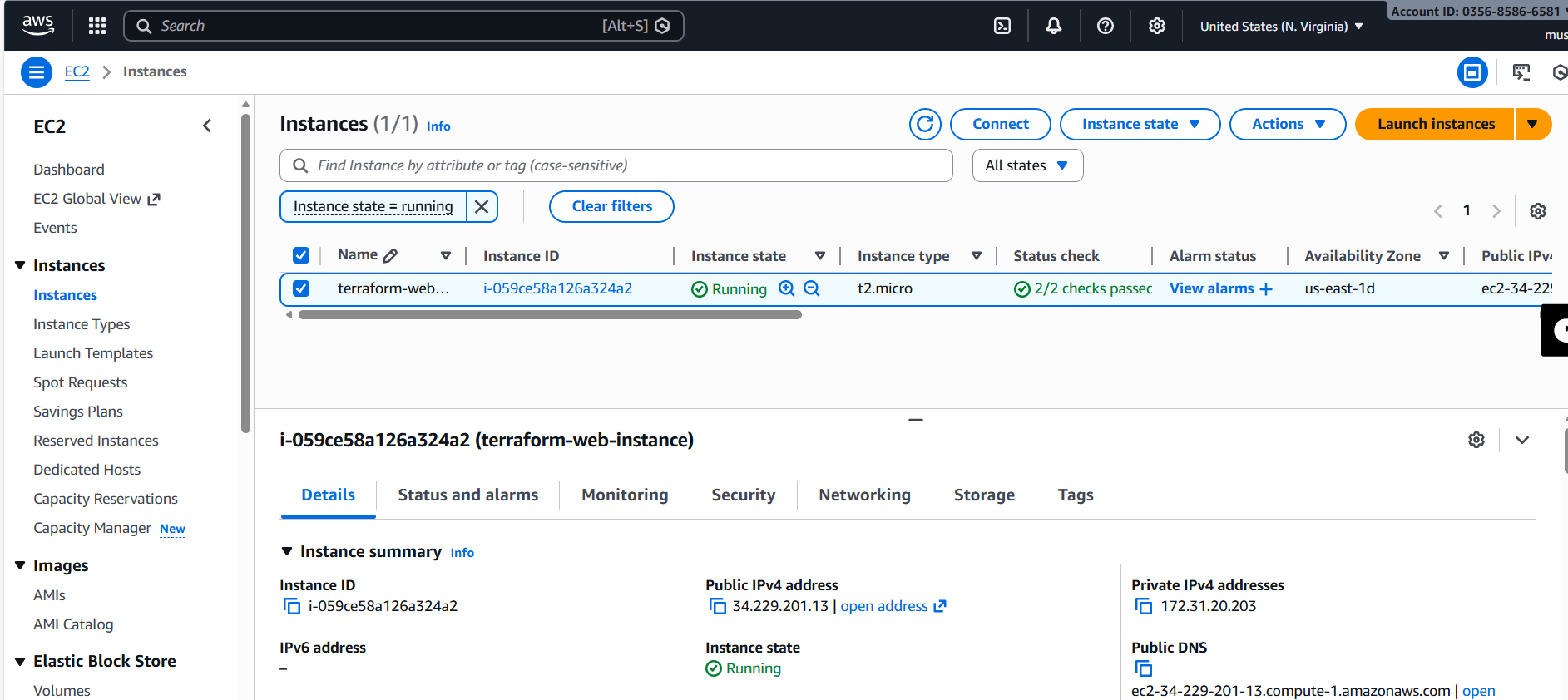 Run (in the same project folder): terraform output public_ip If it says “no outputs found”, run: Enter fullscreen mode Exit fullscreen mode CODE_BLOCK:
**1) Get the EC2 Public IP**  Run (in the same project folder): terraform output public_ip If it says “no outputs found”, run: CODE_BLOCK:
**1) Get the EC2 Public IP**  Run (in the same project folder): terraform output public_ip If it says “no outputs found”, run: CODE_BLOCK:
(That will display it.) Then we test it 1) SSH into the server (Git Bash) Your keypair name is terraform-key, so your file is likely on Desktop. Run: Enter fullscreen mode Exit fullscreen mode CODE_BLOCK:
(That will display it.) Then we test it 1) SSH into the server (Git Bash) Your keypair name is terraform-key, so your file is likely on Desktop. Run: CODE_BLOCK:
(That will display it.) Then we test it 1) SSH into the server (Git Bash) Your keypair name is terraform-key, so your file is likely on Desktop. Run: CODE_BLOCK:
If your key is in **Downloads** instead: Enter fullscreen mode Exit fullscreen mode CODE_BLOCK:
If your key is in **Downloads** instead: CODE_BLOCK:
If your key is in **Downloads** instead: CODE_BLOCK:
2) Once you’re inside EC2: install Docker and run the proof app Paste these **exactly**: Enter fullscreen mode Exit fullscreen mode CODE_BLOCK:
2) Once you’re inside EC2: install Docker and run the proof app Paste these **exactly**: CODE_BLOCK:
2) Once you’re inside EC2: install Docker and run the proof app Paste these **exactly**: CODE_BLOCK:
Now open in your browser: http://34.229.201.13 You should see the Nginx page ✅  **Destroy everything (from your Terraform folder)** Make sure you’re in the **right folder**: Enter fullscreen mode Exit fullscreen mode CODE_BLOCK:
Now open in your browser: http://34.229.201.13 You should see the Nginx page ✅  **Destroy everything (from your Terraform folder)** Make sure you’re in the **right folder**: CODE_BLOCK:
Now open in your browser: http://34.229.201.13 You should see the Nginx page ✅  **Destroy everything (from your Terraform folder)** Make sure you’re in the **right folder**: CODE_BLOCK:
Run: `terraform destroy` Type:` yes` This will remove: - EC2 instance
- Security Group 2) Confirm it’s gone After it completes, run: `terraform output` It should either show nothing useful or error because resources are gone. Enter fullscreen mode Exit fullscreen mode CODE_BLOCK:
Run: `terraform destroy` Type:` yes` This will remove: - EC2 instance
- Security Group 2) Confirm it’s gone After it completes, run: `terraform output` It should either show nothing useful or error because resources are gone. CODE_BLOCK:
Run: `terraform destroy` Type:` yes` This will remove: - EC2 instance
- Security Group 2) Confirm it’s gone After it completes, run: `terraform output` It should either show nothing useful or error because resources are gone. - By the end of this project, you will:
- Provision AWS infrastructure entirely from code
- Create and destroy EC2 safely using Terraform
- Manage Security Groups declaratively
- Understand Terraform state (very important) - Windows AMD64
- Extract terraform.exe
- Add it to PATH - Press Windows key
- Search: Environment Variables
- Open Edit the system environment variables
- Click Environment Variables
- Under System variables, select Path - An AWS account
- An EC2 Key Pair
- A .pem file saved safely
- The key pair NAME ready for Terraform
⚠️ We are NOT creating EC2 yet — just preparing access. - Free-tier friendly
- Matches our Terraform default
- Most tutorials & AMIs work here